The Framiva workflow
One look.
Many possibilities.
From the first adjustment to the last saved copy, keep your photo work easy to revisit.
Coming soon for Android & iOS. Images below show the Android app.
01 / A good starting point
Keep the original.
Find the right frame.
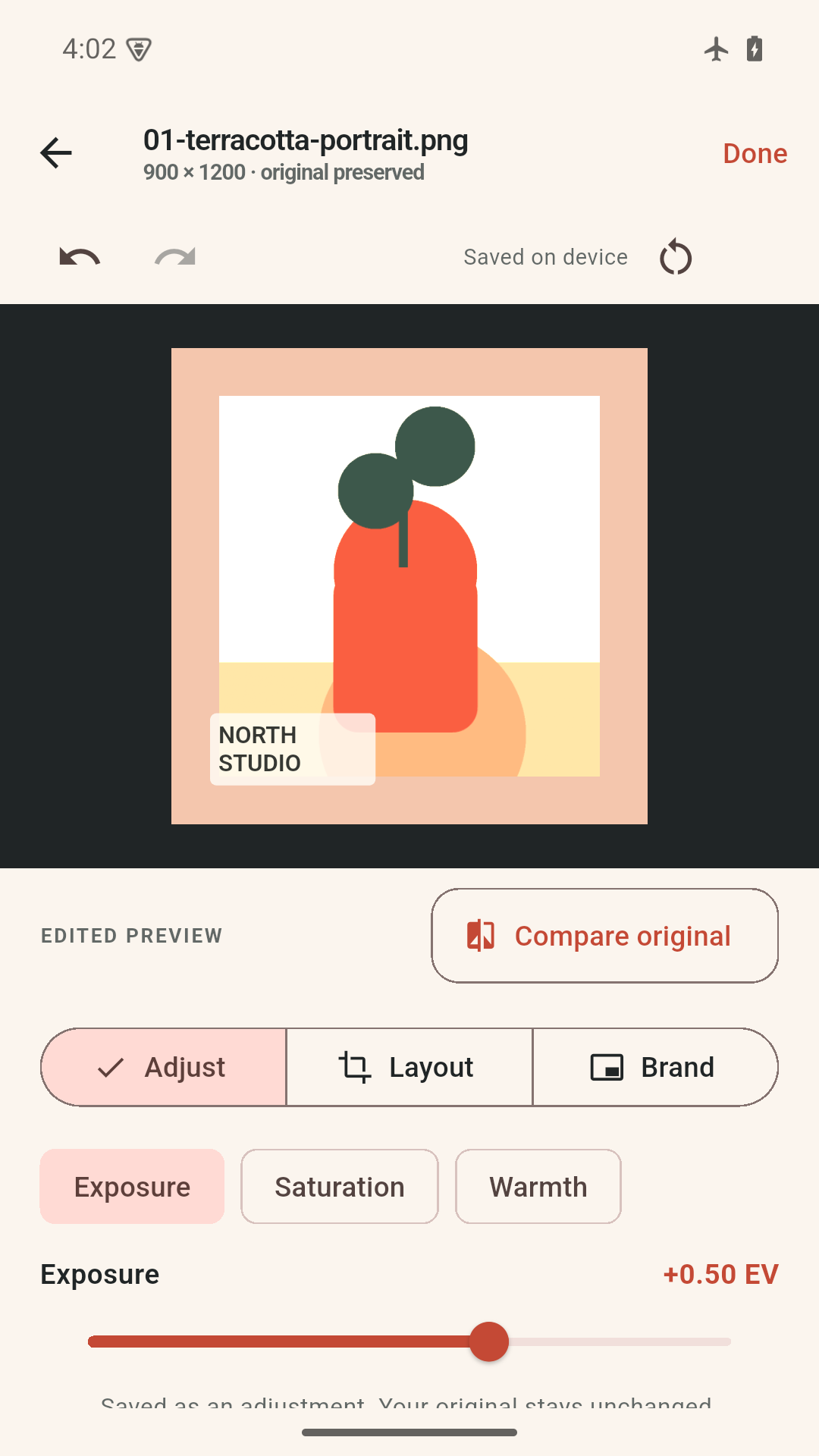
Import a set of compatible photos through your device’s file picker. Crop, reframe, straighten and adjust exposure, saturation and warmth. Add margins and a background to give your subject room.
Compare with the original, undo, redo or reset. Your editing choices are saved locally, ready to reopen.
Up to 24 photos per set. Each photo can be up to 32 MiB and 32 megapixels. Use SDR sRGB JPEG or still 8-bit PNG; convert HEIC, RAW, HDR or unsupported color formats first.
02 / The look is yours
Save it once.
Use it thoughtfully.
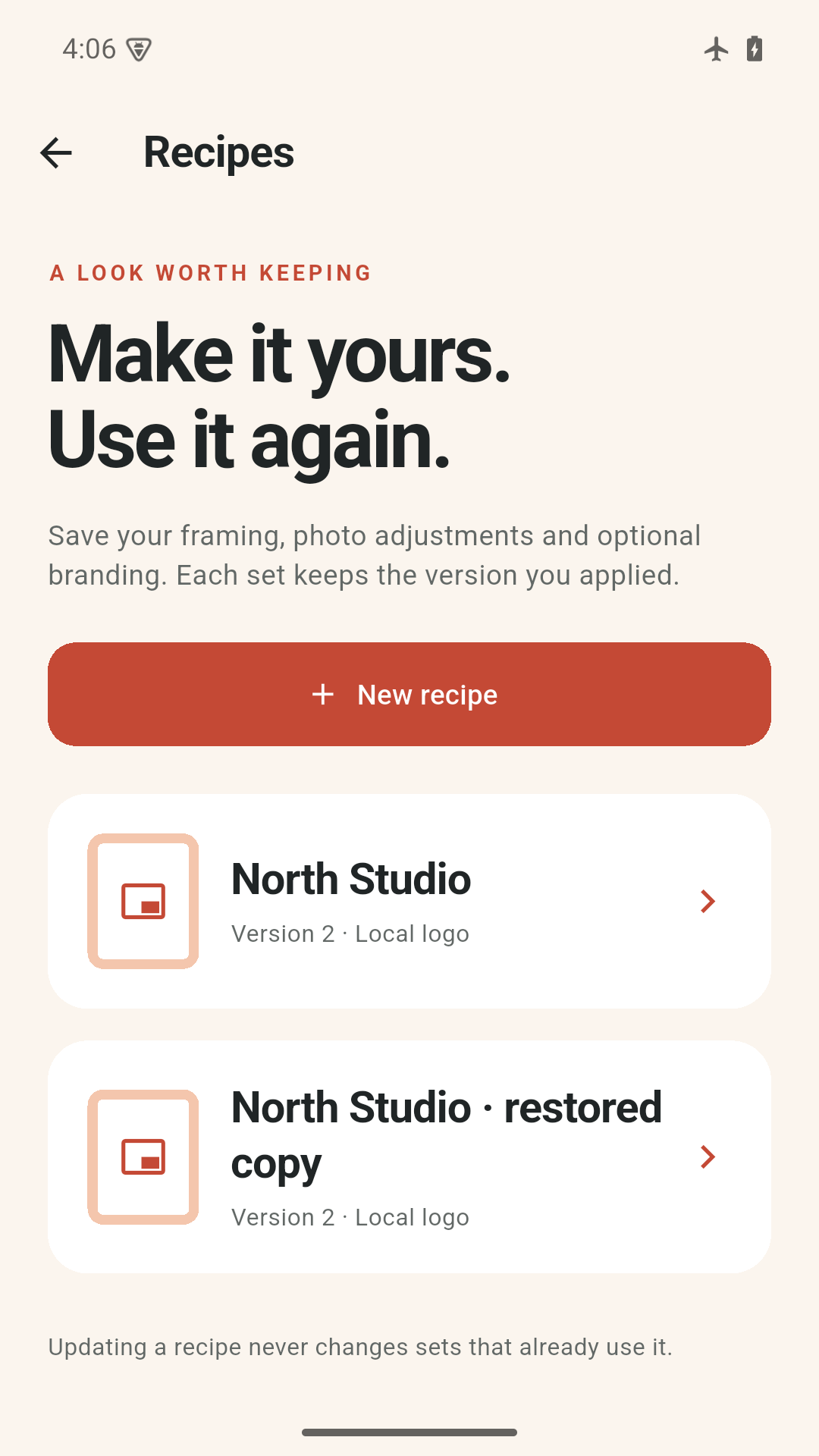
A named recipe holds framing, adjustments and optional branding. Preview it across your photos, review crops individually and protect manual edits unless you choose to replace them.
Applied recipe versions stay with the set, even when you update the saved recipe. Undo a recipe application if the result needs another direction.
Add your own text or PNG logo, with size, opacity, placement and an optional backplate. Branding is your choice.
03 / A result you can check
Choose the size.
See the outcome.
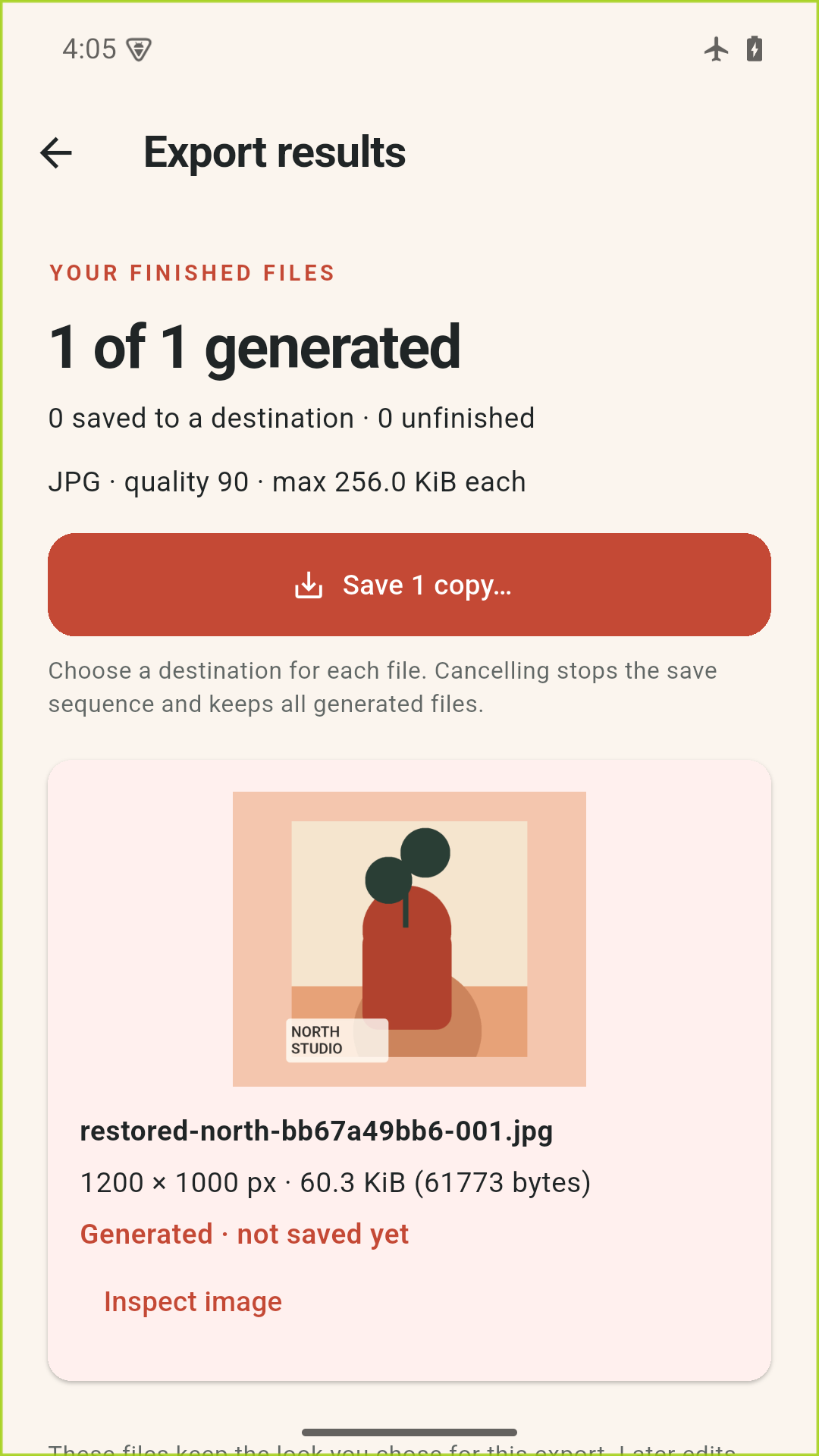
Export from your preserved originals as JPEG or PNG. Choose a 1600 or 2400 pixel long-edge preset, or custom dimensions from 64 to 4096 pixels per edge. Framiva fits the complete composition with background padding when needed.
Each result shows its measured dimensions and file size. A maximum byte limit flags an oversized result so you can choose the adjustment. It never quietly lowers quality.
Generate, inspect, then save copies through your system’s file picker. Unfinished generation can resume; save status stays separate so a local result is never mistaken for a saved destination copy.
04 / Bring the work with you
Save more than
the finished photo.
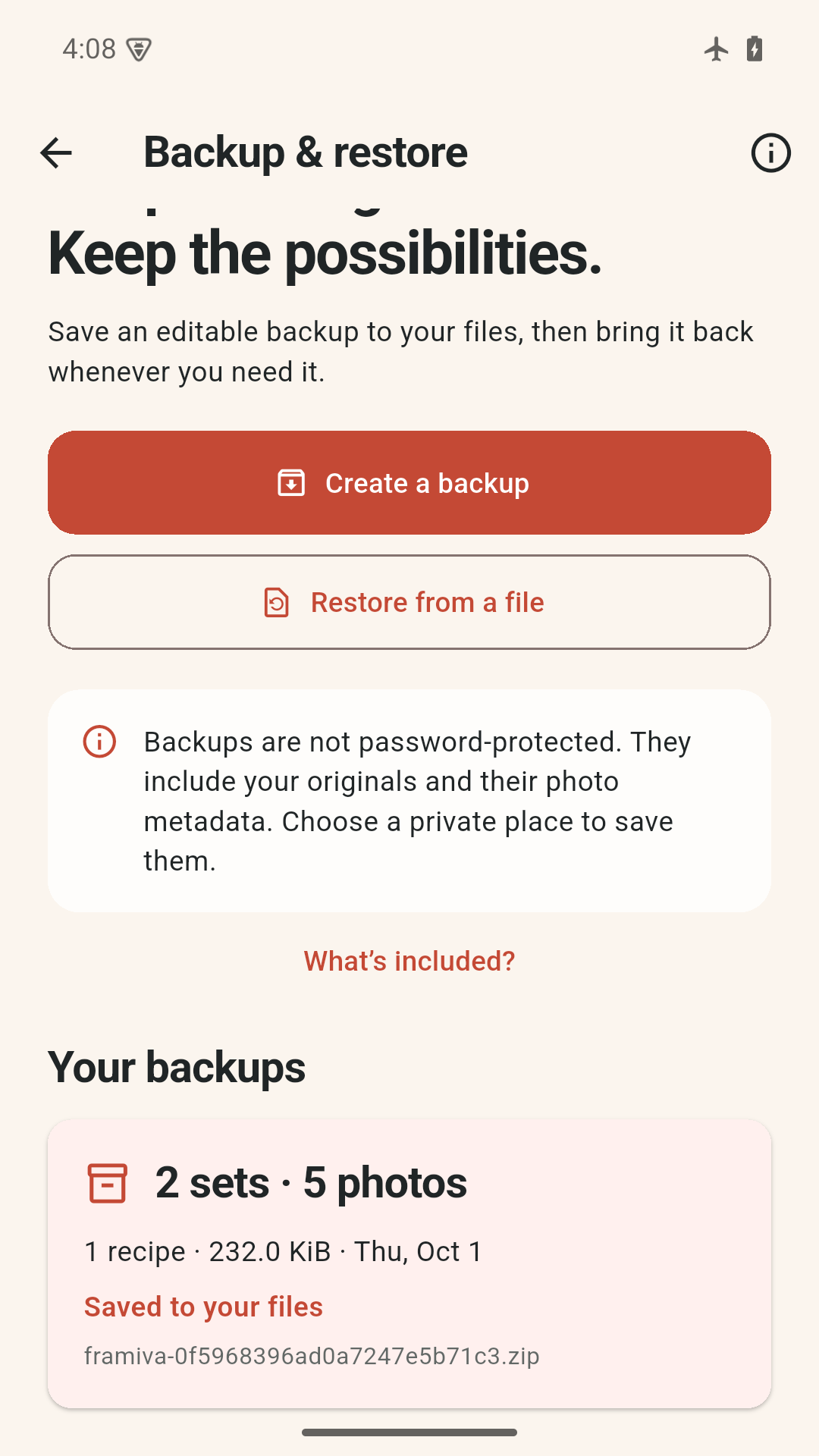
A portable backup holds originals, retained edit history, recipes and referenced logos. Preview its contents before restoring. Add missing work safely or explicitly import separate copies.
Backups are plain ZIP files, not password-protected, and include original metadata. They exclude exported images, export-job history, saved destinations and app settings.
Keep private backups outside the app before uninstalling. There is no automatic Framiva cloud sync. A cloud provider you choose may need a connection and its own account.
A few useful details.
File compatibility, saving and backup limits are explained in our support answers.
Open the FAQ