Room to change your mind.
Crop, straighten and tune light and color. Compare with your original, then undo or redo. Your original file stays intact.

For the photos that have a job to do
One thoughtful edit. A consistent set. Prepare your photos, save your favorite look and export copies that fit.
Coming soon for Android & iOS
Take a look inside

A consistent look. Room for each photo.
Framiva, up close
Shape one photo, carry a look across a set and review the details before sharing.
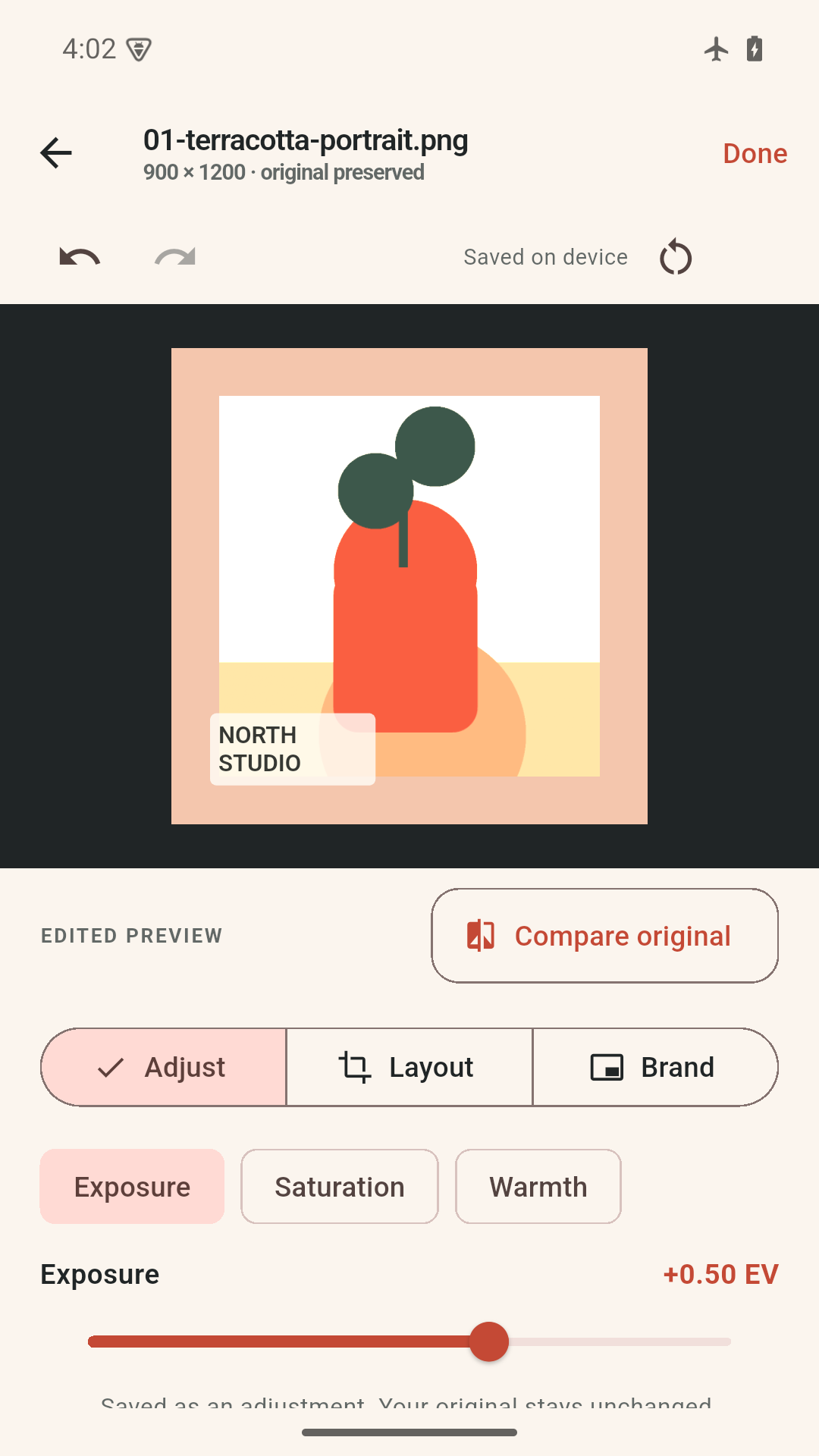
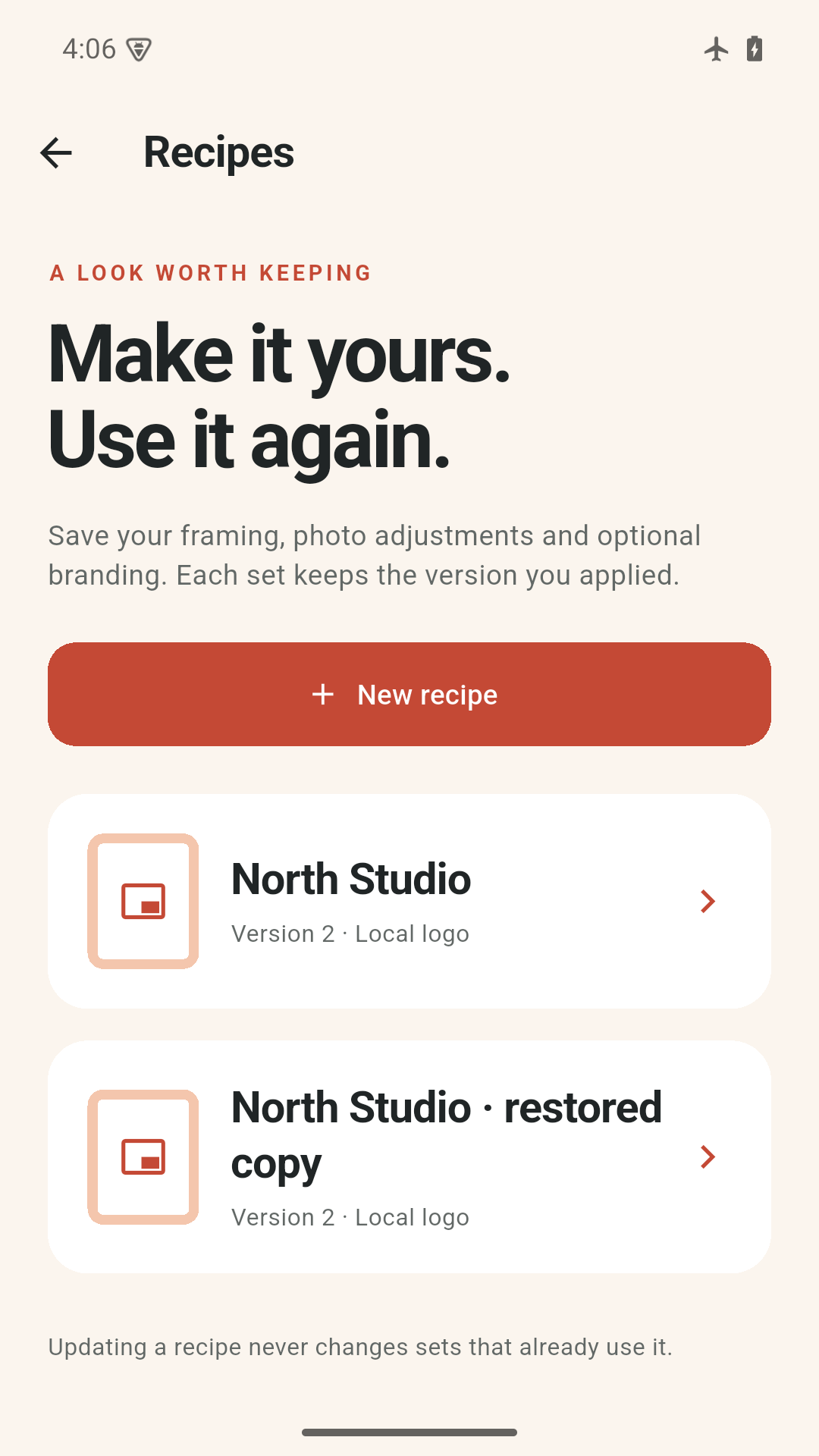
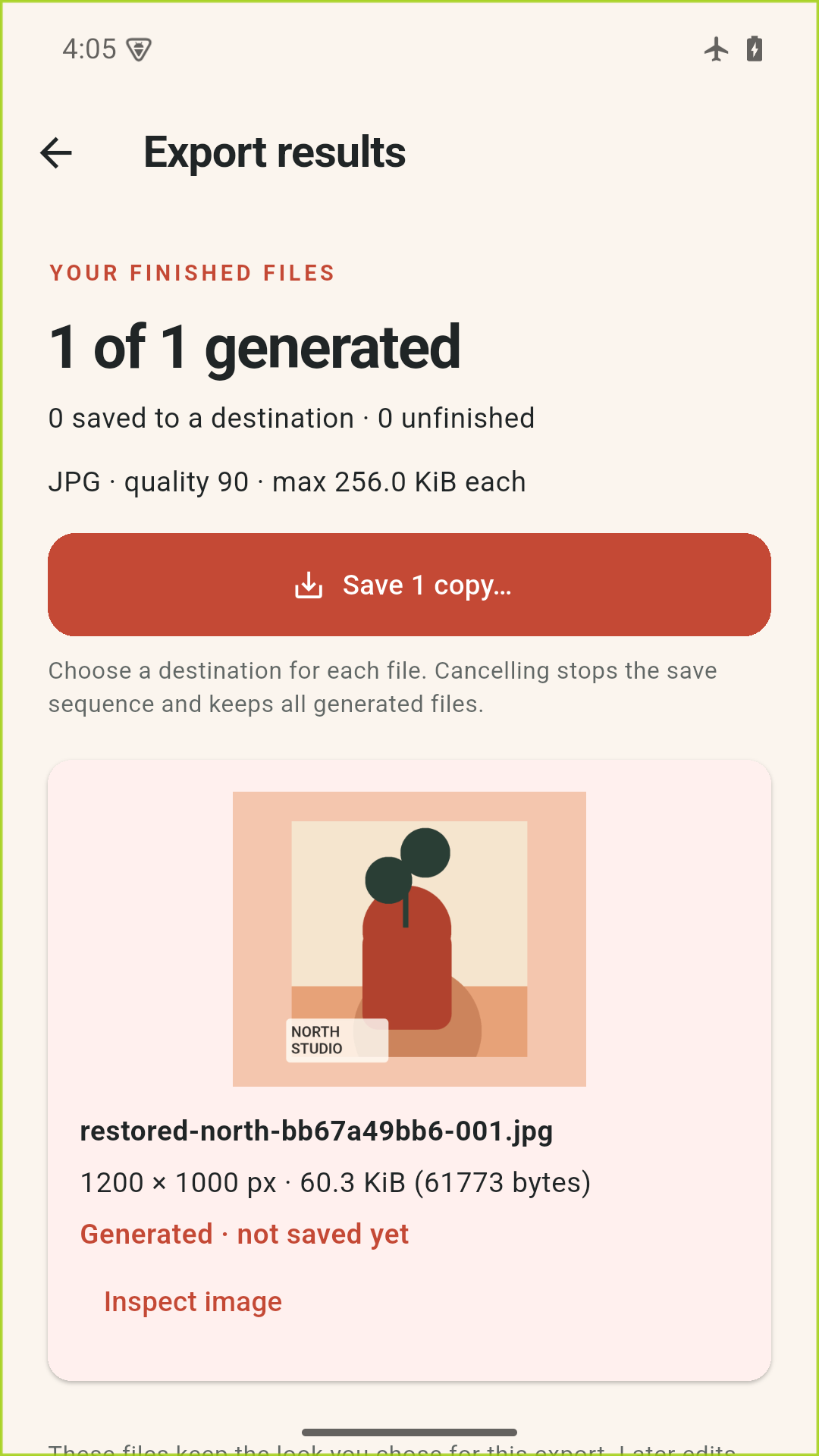
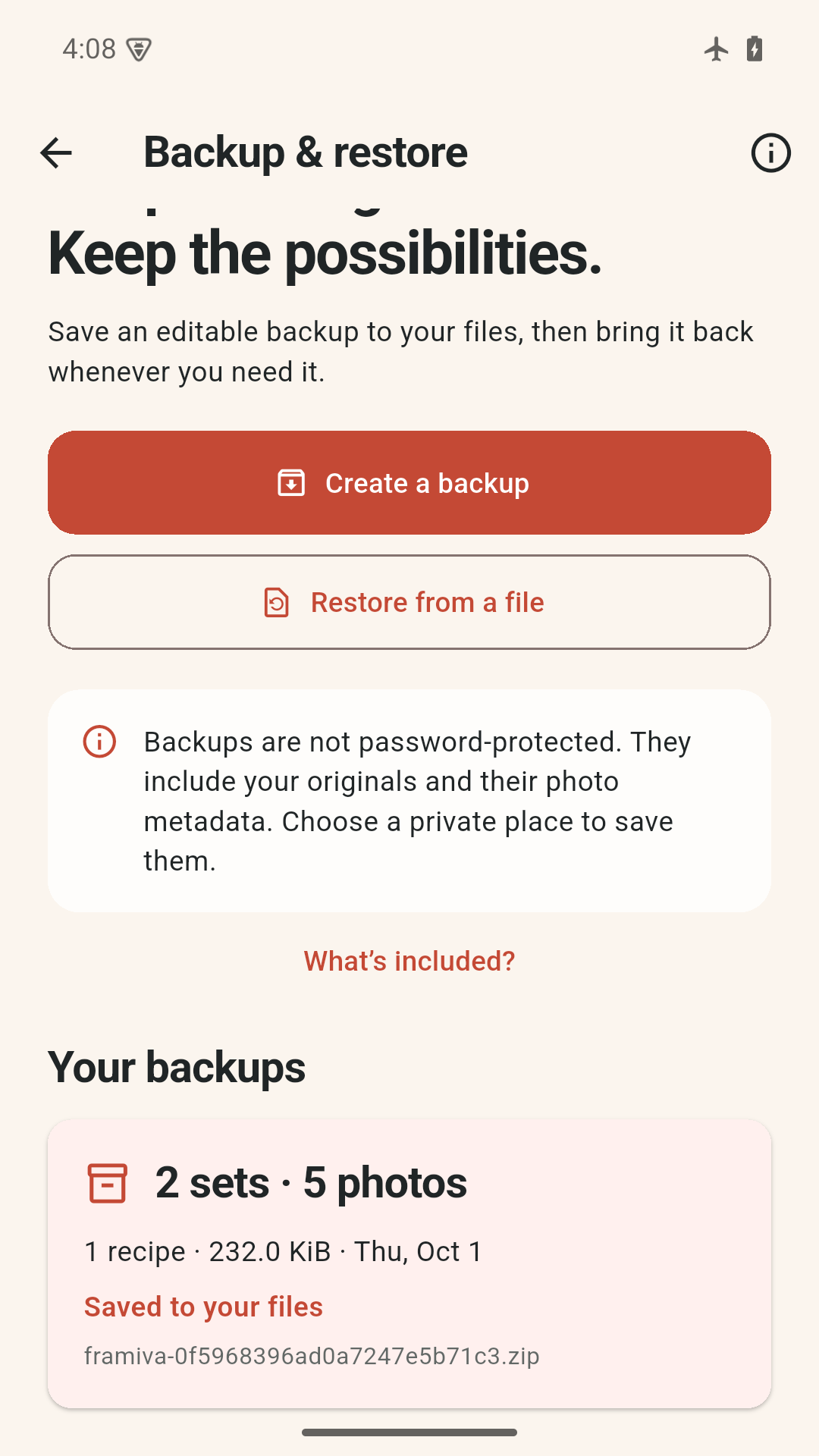
01 Keep the originals.
02 Save the decisions.
03 Repeat the result.
A look that belongs together
For a shop update, a product collection or the next thing you’re making. Bring a little consistency to the photos around it.
Crop, straighten and tune light and color. Compare with your original, then undo or redo. Your original file stays intact.
Save your framing, adjustments and optional text or logo. Preview that look across a set, while keeping individual edits in view.
Choose JPEG or PNG and the dimensions you need. See each result’s actual size, then save a copy to your files.
Keep what works
A saved recipe remembers the look. A photo set remembers the version you applied. Preview a new pass, check individual crops and choose when to replace manual edits.
See how recipes workAdd your own text or PNG logo. No compulsory watermark is added.
Your photos. Your device.
Editing and rendering happen on-device, without an account. Portable backups keep your work editable when you choose to save it elsewhere.
Backups are unencrypted ZIPs and include original photo metadata. Pick a private place to keep them.
Read about your dataA little preparation goes a long way
Start with SDR sRGB JPEG or still PNG photos. Explore the workflow and file limits before you begin.
Explore the answersUse SDR sRGB JPEG or still, 8-bit PNG files. Import up to 24 photos in one set, each up to 32 MiB and 32 megapixels. HEIC, RAW, HDR, animated images and unsupported color profiles need conversion to a compatible copy first.
If your photo lives with a cloud provider, make it available locally before retrying. Keep the original file when converting.
No. Framiva keeps an unchanged private copy of each accepted original and stores your editing decisions separately. Compare original, Undo, Redo and Reset help you revisit those decisions. Retained edit history is limited to 40 steps.
Manual edits are protected unless you explicitly choose to replace them. Preview the recipe, check each crop and use Review / reframe for individual exceptions. Updating a named recipe does not silently change sets that already use an earlier version.
Generation creates the image inside Framiva. Save copies opens your system destination picker so you can choose where it goes. Cancelling that picker leaves the generated file in Framiva. If a save was interrupted and its status is unknown, check your destination before making another copy.
New JPEG/PNG exports omit source EXIF, GPS, XMP, ICC and text metadata. The private original stays unchanged, and portable backups include that original metadata. Visible text or identifying details within the image itself remain visible.
Select a Framiva backup and review the preview. Add missing skips existing identities by default. Import as copies explicitly creates separate editable sets. Cancel restore leaves the library alone. Damaged or unsupported archives are rejected; keep the original ZIP and try a known-good backup.
Something to look forward to
We’re preparing a calm workspace for editing photo sets, reusing a look and making finished exports.
Explore the current features, real app screens and practical answers while we prepare for release.
Explore FramivaRelease timing and pricing will be shared when confirmed. No signup is required to explore this site.